
What is AssistiveTouch on your Apple Watch and when should you use it?
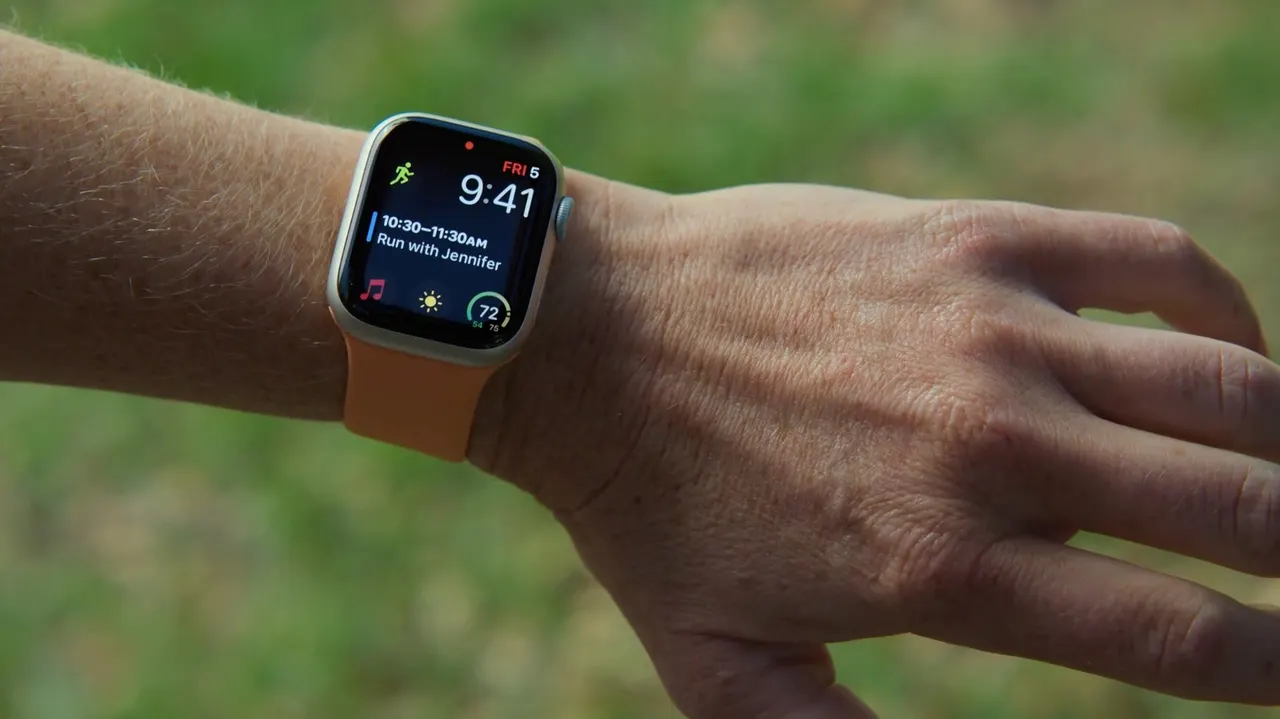
Your Apple Watch can respond to simple hand and finger gestures with AssistiveTouch. Learn how to set it up, toggle it off and when it's actually helps.
What is AssistiveTouch on your Apple Watch and when should you use it?
AssistiveTouch is an accessibility feature, but you can actually use it to control your Apple Watch without even touching the screen.
The Apple Watch has an interface that's very easy to understand, and for the most part, it involves tapping the screen and rotating the Digital Crown. But there's another way to control it without even touching the screen, thanks to AssistiveTouch. Although it's an accessibility feature designed to help people with motor disabilities navigate the interface, it also unlocks some cool features for everyone. For instance, you can control the system just by moving your fingers and hand — no special hardware required. If you have an Apple Watch running the latest version of watchOS, it has AssistiveTouch built in.
Apple Watch already has some finger gestures enabled by default, such as pinching your fingers twice to interact with the screen. But AssistiveTouch takes this to another level. The feature combines data from built-in sensors — such as the gyroscope, accelerometer and optical heart rate sensor — to detect even the subtlest movements you make with your arm, hand and fingers. With it enabled, you can do things like tap buttons, scroll through the screen and even use Apple Pay without having to touch the screen directly.
How to turn on AssistiveTouch on the Apple Watch
Turning on AssistiveTouch is simple, and you can do it right from your Apple Watch. Open the Settings app and navigate to Accessibility, then AssistiveTouch. Flip the toggle on and then turn on Hand Gestures so you can navigate your Apple Watch without touching the screen. You can also customize the action assigned to each gesture, such as a single tap with your fingers to touch the screen and a double tap to open the Notification Center. AssistiveTouch is highly customizable, and it's worth taking a look at all the available actions for each gesture so you can choose the ones that make the most sense for you.
Also in the Hand Gestures settings, you'll see blue "Try it out" text. Tap there to learn more about how to use AssistiveTouch gestures in a guided environment, with an animation showing you how to use each gesture. Once enabled, a highlight appears around elements on the screen and four default gestures handle navigation, so that you know which element of the screen will be tapped when you make the assigned gesture. There are also a few other interesting options, such as Motion Pointer, which places a cursor on your Apple Watch screen that you can control with the movement of your arm.
When you should use AssistiveTouch on your Apple Watch
The most obvious use case for this feature is accessibility. People who can't comfortably move their fingers to tap the Apple Watch screen may find it easier to interact with the device using AssistiveTouch. But even if that's not the case for you, the feature is also useful in certain everyday situations, such as when your hands are full or you're wearing gloves. Just keep in mind that enabling AssistiveTouch turns off Apple's universal double tap gesture, which you'd otherwise use to answer calls or scroll through your widgets. It's one of the underrated Apple Watch features you can set up in minutes.
Even if you don't want to use AssistiveTouch, there are other accessibility settings worth checking out. For instance, you can enable Auto-Answer Calls or Show Audio Transcriptions for HomePod announcements or Workout Buddy. You can also turn on Reduce Transparency to increase contrast and adjust Text Size to make on-screen text larger or smaller. And for Apple Watch Ultra users, it might be worth learning how to set different actions for the Action Button, too.