
How to watch videos on Apple CarPlay while parked
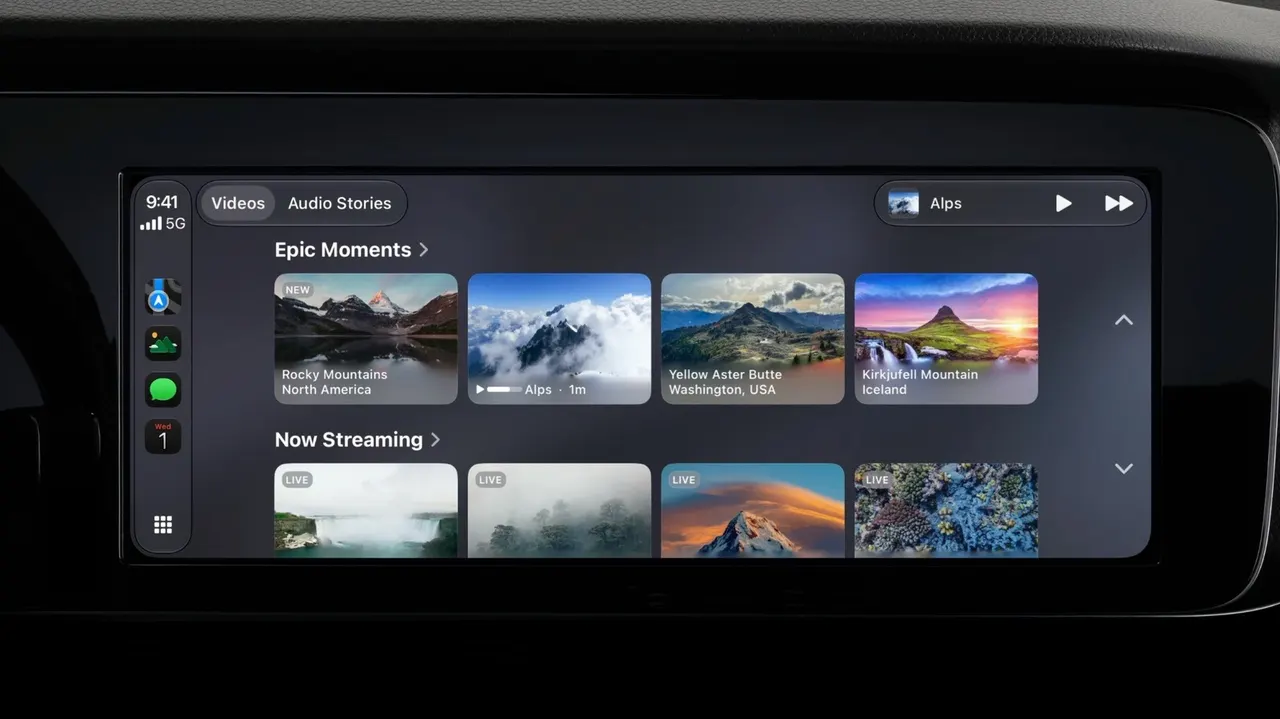
iOS 27 introduced support for native video playback on CarPlay, with certain restrictions and requirements. Here's how to use the new feature.
How to watch videos on Apple CarPlay while parked
It's straightforward enough, but requires the right apps (and a compatible car).
CarPlay brings your iPhone apps right to your car's dashboard. However, not every app gets a CarPlay version — it's mostly limited to audio, messaging and navigation apps. But with iOS 27, users can finally watch videos on CarPlay when they're parked. But watching videos on CarPlay has certain limitations, and it's not just about running the latest iOS.
For one, not all video apps support CarPlay right now. Even if they do, the feature only works in vehicles with "video-in-car" technology, which helps CarPlay detect when the car is stopped. The bad news is that even Apple doesn't have a list of vehicles compatible with video apps on CarPlay, so you'll have to find out for yourself whether yours is. Still, if you're lucky enough to have a compatible vehicle, here's how to watch videos on CarPlay.
Watching videos on CarPlay with AirPlay and apps
Right now, few video apps are compatible with CarPlay. Some of the most popular ones, like YouTube or Netflix, don't support it natively yet. If you have a compatible video app on your iPhone, you'll see it on CarPlay's Home Screen. In that case, just open the app to browse the video catalog. There's no need to find the video on your iPhone or stream it via AirPlay. When you start driving, CarPlay automatically switches to audio-only mode, so you can keep listening to the rest of a podcast, for example.
Luckily, CarPlay also supports AirPlay, so you can stream a video from your iPhone or iPad to your car's dashboard even if an app doesn't work with CarPlay just yet. With your iPhone connected to CarPlay, open an AirPlay-compatible app (like YouTube) and start playing a video. Then, look for the AirPlay button and choose CarPlay from the list. You should then see the video on your car's dashboard, with playback controls on both your iPhone and CarPlay. To bring the video back to your iPhone, tap the AirPlay button again and deselect your car. Also, make sure your car is parked; otherwise, it won't play the video.
Why video playback might not be available in your car
If you've tried the steps above and still can't watch videos in your car with CarPlay, it's most likely because your car doesn't support it. Automakers need to add support for video apps, and many older car dashboards don't support it and probably never will. Apple requires CarPlay screens to be at least 1,920 x 1,080 pixels to play video. CarPlay systems also need to support the HEVC codec and at least 4GB of memory, which older systems may lack.
You'll also need up-to-date software. AirPlay to CarPlay requires iOS 26.4 or later, while native video apps are only available on iOS 27. If you haven't updated, open your iPhone's Settings and go to General, then Software Update to check whether any updates are available. iOS 27 is available for the iPhone 11 and later, so your iPhone most likely supports it.
If your car isn't compatible with CarPlay video, brands like Carlinkit and Ottocast sell Android-based "AI boxes" for your car's dashboard. These let you install Netflix, YouTube or pretty much any other video app without jailbreaking your iPhone. Be aware that these workarounds will also bypass the restrictions that limit video playback to when the vehicle is parked, and that watching video on the road can be distracting.