
How to use your old tablet to build a live streaming setup
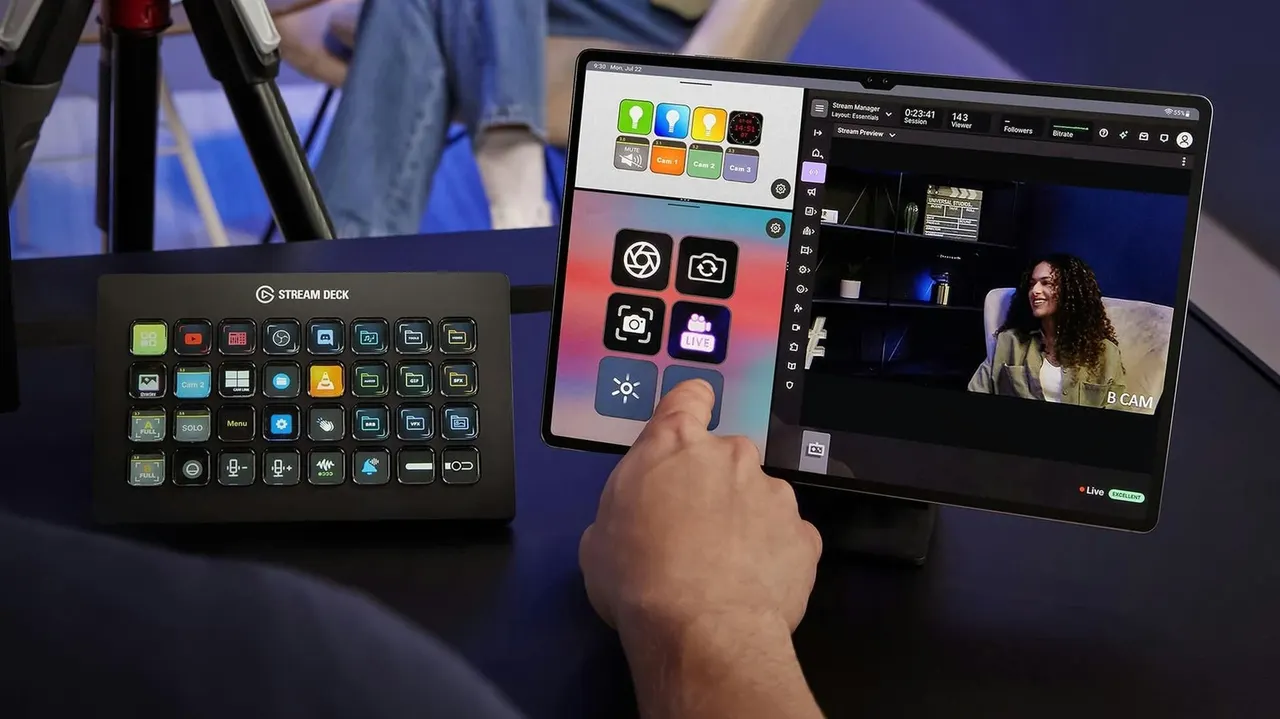
You don't always need to buy new products just to start live streaming. This app lets you reuse an old tablet as the centerpiece of your setup.
How to use your old tablet to build a live streaming setup
Repurpose your old iPad or Android tablet by turning it into a virtual Stream Deck.
As tablets age, people tend to leave them sitting in a drawer, especially after upgrading to a new one. But if you stream on Twitch or YouTube, the good news is that there's a neat way to give your old tablet a new lease on life by turning it into a Stream Deck equivalent. Even better, it works with both iPads and Android tablets.
For those unfamiliar, Stream Deck is a popular physical controller for streaming with programmable buttons, each with a small screen. This opens up a world of possibilities for automating actions on PCs or Macs, such as opening a specific app, muting your mic or switching between cameras. This makes a Stream Deck one of the many game streaming essentials you'll want for your setup.
Elgato, the company behind Stream Deck, already offers a range of Stream Deck hardware and software, but it now offers a mobile app that essentially turns phones and tablets into controllers — no need to buy dedicated hardware. And what makes it particularly appealing is that the app runs on versions as old as iPadOS 15 and Android 9, so most tablets launched in the last few years should run it just fine.
How to turn your old tablet into a Stream Deck
Turning your iPad or Android tablet into a Stream Deck device is quite easy: all you need to do is download the official app on your computer (it requires Windows 10 or macOS 10.15 and later) and on your tablet from the App Store or Google Play. Once the app is installed on your computer, open the device picker in the top-left corner and click "Add Mobile Device" to generate a QR code. Scan the code using the Stream Deck app on your tablet to finish pairing and setup. It usually takes no more than five minutes.
One thing to keep in mind is that both devices must be on the same local network, so it won't work if your tablet is connected to 4G or 5G, for example. If communication between your computer and tablet fails, make sure your computer's firewall or antivirus software isn't blocking the connection. On Windows, users may need to change their network profile from Public to Private. Apple users have an advantage here, since the Stream Deck apps for Mac and iPad can pair over USB instead of Wi-Fi. This not only makes the process a lot easier but also ensures a more stable connection with lower latency when you press a button.
Once you've paired both your computer and tablet, you can customize the app with the controls you want. Everything works as it would on a Stream Deck hardware, except your tablet is now the dashboard, and you can drag actions from the panel directly onto the empty keys. For streamers, Elgato has plugins for essentials like OBS Studio, Twitch, YouTube and even Spotify. You'll also find support for smart lights from Philips Hue, Nanoleaf and Govee.
Is Stream Deck Mobile Pro worth paying for?
The free version of the Stream Deck mobile app gives you up to six buttons and unlimited access to actions with no trial period. That's the same number of buttons you'll find on the Stream Deck Mini, Elgato's smallest controller, and it's enough to cover basic actions like starting a livestream or muting your mic.
If you need more controls — having only six buttons on a tablet can seem like a waste of space — you can pay for Stream Deck Mobile Pro. This increases the limit to 64 buttons, which is more than the Stream Deck + XL, and unlocks features like different grid options and custom backgrounds. On the iPad, you can even use Split View to open two different keypads side by side. Subscriptions are $2.99 per month or $24.99 yearly. Elgato also offers a lifetime license for $49.99, which might be worth it if you stream regularly.
If you want to use your tablet as a Stream Deck, look for an inexpensive tablet stand so it's always within sight, and keep it plugged in to prevent the battery from dying during a livestream. You'll also want the screen to stay on so you don't lose access to your buttons. On an iPad, you can set Auto-Lock to "Never" under Settings > Display & Brightness. Android tablets will also have a similar option in their display settings.