
How to reset your Vizio TV back to factory settings
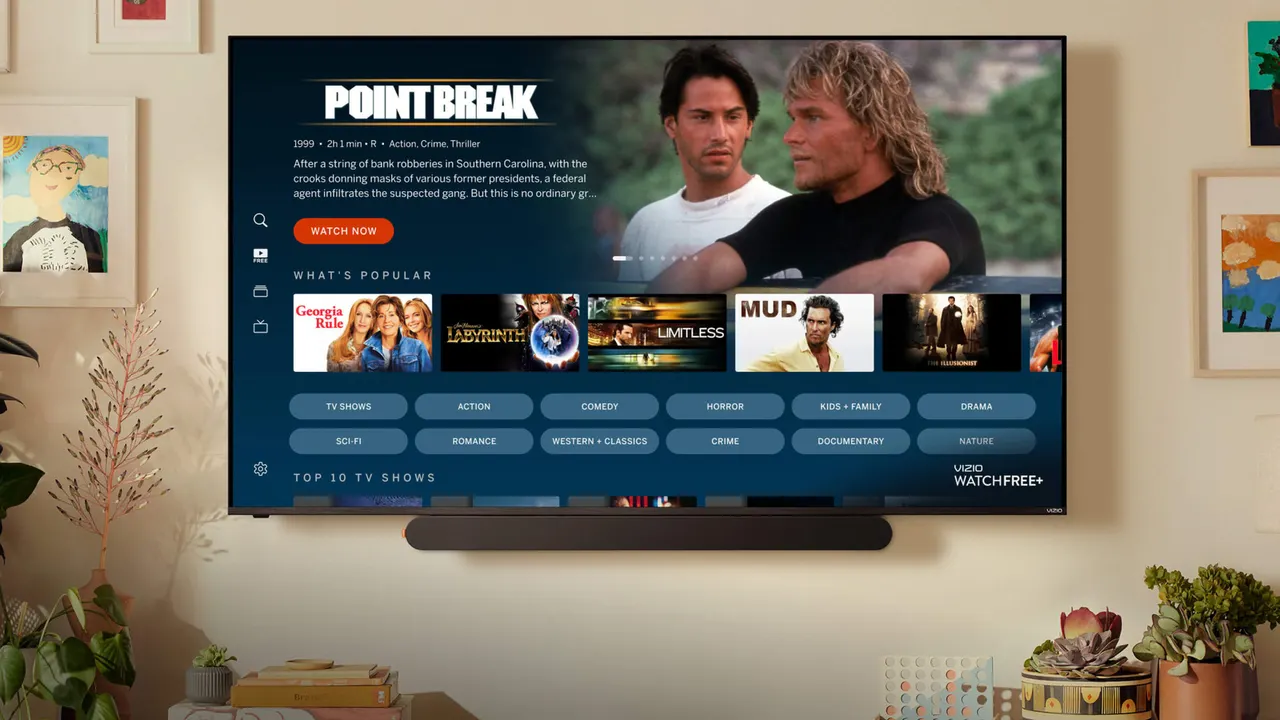
A factory reset shouldn't be your first instinct when your Vizio TV has issues, but it can sometimes be the only way to fix them. Thankfully, it's quite simple.
How to reset your Vizio TV back to factory settings
If you've tried everything else, it might be time for a factory reset.
While Vizio TVs are budget products by design, they do have a big advantage compared to other US brands: retail access. Walmart bought out Vizio in 2024, so if you need a cheap TV alongside your groceries, a Vizio product is always close at hand. That's only in the US, however — Canadian Walmarts are out of the loop for whatever reason.
They're unique in other ways, too. The main one is that Vizio TVs run proprietary software, Vizio OS, bucking the trend of most budget smart TV brands opting for Roku OS, Fire TV or Google TV. Presumably this is because it gives Walmart more control over data collection, ad revenue and recommended content.
One issue with using non-standard (or uncommon) software, though, is that it can take users a little while to adjust, and you may encounter unique problems. As with any TV, though, you can perform a factory reset and start afresh if everything goes haywire. Here's what you need to know, including why a reset should always be a last resort.
How to factory reset your Vizio TV
Before you do anything else, make sure you have all your logins and passwords written down somewhere, whether on paper or in a password manager. We'll go into the reasons for that in the next section. Once that's done, and if you're sure you want to continue, here's the process:
- Hit the Menu button on your remote, then select the Gear or Settings icon.
- Depending on the model of your TV, you'll need to navigate to Admin & Privacy > Reset to Factory Settings, System > Admin & Privacy > Reset to Factory Settings or All Settings > Admin & Privacy > Reset to Factory Settings.
- Enter your TV's PIN. If you can't remember setting one, the default is 0000.
- Click Reset, then press OK on your remote to confirm.
- Wait for your TV to restart.
Once your TV reboots, you'll be launched straight into your TV's normal setup wizard. Follow all of the prompts, except for setting up Viewing Data. That's Vizio's euphemism for automatic content recognition (ACR), which fingerprints all your on-screen content for the sake of advertising and marketing interests — and, yes, that includes over-the-air broadcasts and HDMI-connected devices.
Why a factory reset should always be a last-ditch effort
A factory reset reverts your TV to the state it shipped in, so all your customization disappears. It's not just your picture and audio settings, either; you'll also lose your channel lineup, parental controls and logins. You'll also have to redownload apps and software updates and reconfigure smart home integrations, so it could take a while to set up your TV the way you prefer.
There's also no guarantee a factory reset will actually solve anything. While it should help if the issue stems from corrupt files or settings you don't remember changing, some glitches may be linked to hardware or individual apps instead. In those circumstances, you'll end up right back at square one. There's no option to pick specific app or OS versions to install, so you can't work around a faulty update unless you're willing to do without an offending app entirely — if that is the problem in the first place, of course.
Before trying a reset, then, it's best to diagnose the symptoms and troubleshoot first. You can also potentially fix some glitches by simply rebooting or power-cycling your TV. The latter involves turning off your TV, unplugging it for at least 30 seconds, then plugging it back in. It's not guaranteed to fix anything, but it's a better first step than an immediate factory reset.